
Are you looking for the best video hosting for Tutor LMS, or trying to figure out how to embed video in Tutor LMS lessons? This guide covers both. Tutor LMS is one of the most popular WordPress LMS plugins for educators, institutes, and coaching centers – but it does not come with its own video hosting or detailed watch time analytics for students.
In this article, you will learn how to set up VdoCipher as your Tutor LMS video hosting platform, embed videos using a simple shortcode, and track video watch time per student – no coding required.
Quick Answer: To embed video in Tutor LMS, install the VdoCipher WordPress plugin, upload your video to get a shortcode, and paste it into your Tutor LMS lesson using the ‘Add URL › Shortcode’ option. VdoCipher acts as your video hosting for Tutor LMS – giving you smooth playback, watch time tracking per student, and piracy protection – no coding required.
Table of Contents:
Video Hosting for Tutor LMS
Tutor LMS does not come with its own video hosting. When you build a course, you need to decide where your videos actually live. The platform you pick affects your load speed, student experience, and how much control you have over your content. There are three common options:
Option 1 – Upload directly to your WordPress server
You can upload video files to your WordPress media library and embed them in Tutor LMS lessons. This is the simplest option, but it means large video files sit on your shared hosting server, consuming bandwidth and slowing down your site. There is also no adaptive quality adjustment — the video plays at a fixed resolution regardless of the student’s internet speed.
Option 2 – YouTube or Vimeo
Both platforms are free to embed via the Tutor LMS lesson builder. YouTube gives you unlimited storage and adaptive streaming, but it shows suggested videos and ads to your students after playback and your content is publicly accessible by default. Vimeo’s paid plans offer more privacy controls, but neither platform gives you per-student watch time data or lets you restrict access to enrolled students only.
Option 3 – VdoCipher (recommended for course creators)
VdoCipher is a dedicated video hosting platform built for online courses. It handles adaptive streaming, gives you a brandable custom player, and provides per-student video watch time analytics — so you can see exactly how long each student watched and where they dropped off. It also includes piracy protection features like dynamic watermarking and DRM encryption for instructors who sell premium content.
The rest of this guide walks you through how to set up VdoCipher as your Tutor LMS video hosting solution in four steps.
| Feature | WordPress Self-hosted | YouTube / Vimeo | VdoCipher |
|---|---|---|---|
| Adaptive streaming | ❌ No | ✅ Yes | ✅ Yes |
| Custom branded player | ❌ No | ❌ No | ✅ Yes |
| Per-student watch time data | ❌ No | ⚠️ Channel only | ✅ Yes |
| Student access control | ❌ No | ⚠️ Limited | ✅ Yes |
| Dynamic watermarking | ❌ No | ❌ No | ✅ Yes |
| Piracy / download protection | ❌ No | ❌ No | ✅ Yes |
| Ads shown to students | ✅ No ads | ⚠️ On YouTube | ✅ No ads |
| Tutor LMS shortcode embed | ✅ Yes | ✅ Yes | ✅ Yes |
Watch: Embed Secure Videos in Tutor LMS
Here’s a tutorial that shows you how to add secure VdoCipher-hosted videos in Tutor LMS, configure protection settings, and publish the video inside your course.
Step-by-Step Guide to Embed Video in Tutor LMS with VdoCipher
Follow these simple steps to embed secure videos in Tutor LMS using VdoCipher.
Step 1: Sign Up for VdoCipher
First, go to VdoCipher and sign up for a free trial. You don’t need a credit card to get started. Once your account is created, you can log into the VdoCipher dashboard.

Step 2: Upload or Import Your Video
After logging in, head to the Videos tab. Click on Upload to select a file from your device. You can also import videos from Google Drive, Dropbox, or other sources. Once uploaded, VdoCipher automatically encrypts your content to prevent unauthorized access.

Step 3: Install VdoCipher Plugin & Configure Settings
Now log into your WordPress admin dashboard and install the VdoCipher WordPress plugin. Navigate to Plugins > Add New, search for “VdoCipher,” and install and activate the plugin. Once activated, go to the plugin settings and add your API secret key from the VdoCipher dashboard by clicking on Config > Add API Key.
You can then configure options such as dynamic watermarking, watermark color, size, and interval. Under advanced settings, you can enable user session tracking for enhanced analytics. Once your preferences are saved, return to the VdoCipher dashboard, select your video, and click on Embed > WordPress to copy the video shortcode.

Step 4: Embed the Video in Tutor LMS
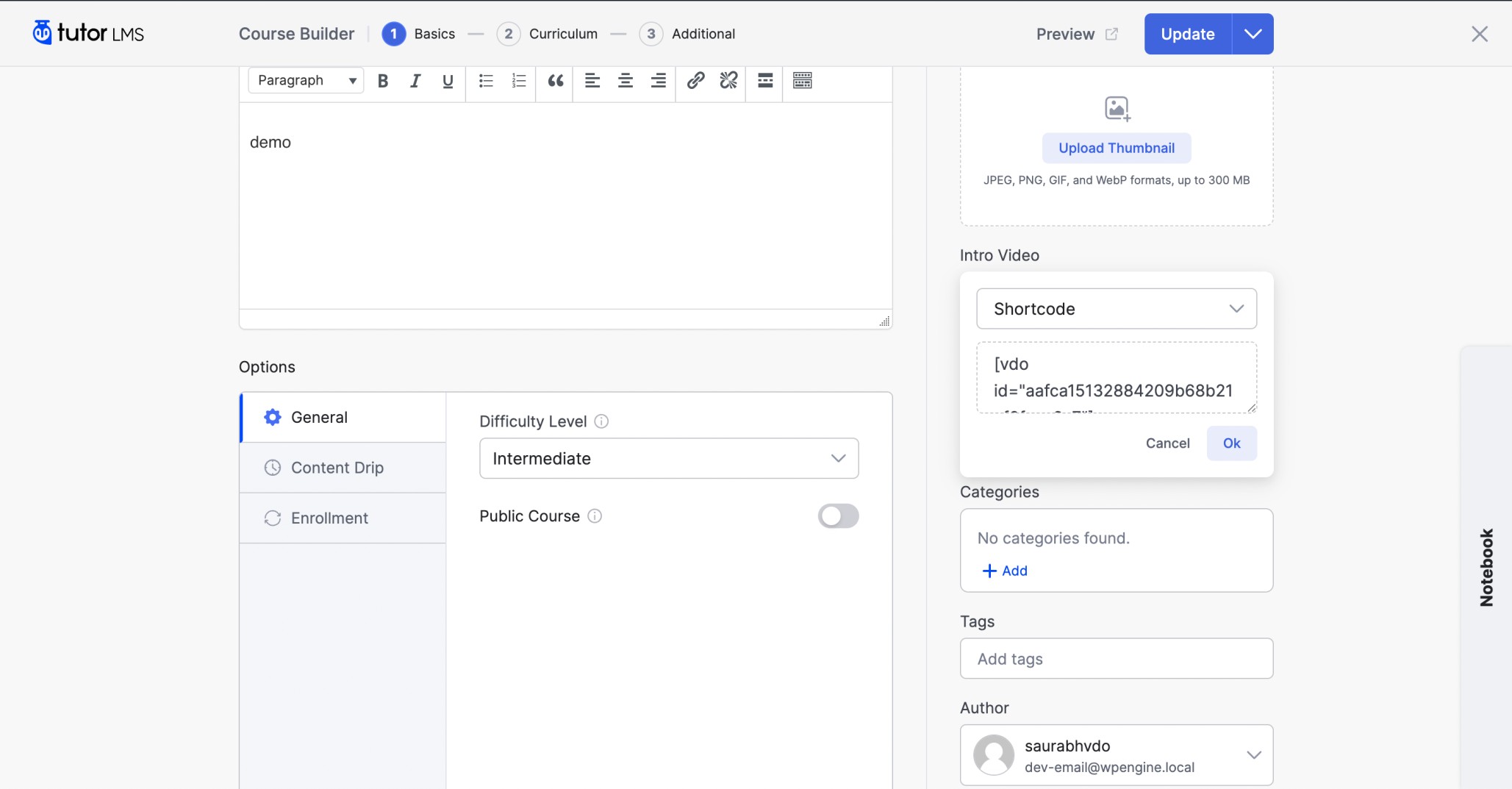
Navigate to Tutor LMS > Courses in your WordPress admin panel and select the course you want to edit. Within the course builder, click to edit the lesson where you’d like to place the video. Choose Add URL, then select Shortcode from the dropdown. Paste the video shortcode copied earlier into the input field and click OK. Update or publish the lesson. Your secure video will now appear in the lesson content with DRM protection and dynamic watermark enabled.
Why Choose VdoCipher for Video Hosting?
While Tutor LMS allows video uploads and YouTube or Vimeo embedding, these methods don’t provide sufficient protection against piracy or unauthorized sharing. VdoCipher, on the other hand, uses Hollywood-grade DRM encryption to prevent downloads, screen recordings, and piracy attempts. It also includes:
By using VdoCipher, you can confidently offer high-quality videos without compromising your revenue.
Explore More ✅
With Vdocipher’s Online Video Player You Can Stream Videos In a Smooth and Secure Manner
Find out how over 3000+ customers in over 40+ countries use Vdocipher’s online video player to ensure seamless and secure video streaming!
Benefits of Using VdoCipher with Tutor LMS
1. DRM Encryption – Your premium video content is encrypted using Google Widevine DRM and Apple FairPlay, ensuring it cannot be downloaded or pirated.
2. Seamless Integration – The shortcode easily fits into Tutor LMS without the need for coding or technical know-how.
3. Custom Player Controls – Add captions, adjust playback speed, apply branding, and more to match your learning experience.
4. Track Video Watch Time in Tutor LMS – VdoCipher analytics dashboard shows you: total watch time per student per video, the exact timestamp where each viewer dropped off, which 30-second segments were rewatched most, and overall completion rates across all enrolled students. This makes it easy to identify weak lessons, improve your content, and understand how students are actually engaging with your course.
5. Adaptive Bitrate Streaming – Videos automatically adjust quality based on internet speed, ensuring smooth playback across devices.
6. Cross-Device Compatibility – Your videos work securely across desktops, tablets, and mobile phones.
Best Practices to Optimize Video Lessons in Tutor LMS
To get the most out of your video content:
- Keep videos short and focused – Break content into 5-10 minute segments.
- Use captions – Improve accessibility for international students.
- Add visual aids – Diagrams and animations improve understanding.
- Avoid YouTube for premium content – Public platforms don’t offer piracy protection.
- Review watch time analytics monthly – Use VdoCipher’s per-student analytics to identify which lessons have high drop-off rates. A video completion rate below 60% usually means the lesson is too long or too dense.
- Pick the right hosting platform before you launch – Switching video hosting after launch means re-embedding every lesson. Decide on your Tutor LMS video hosting setup at the start: self-hosted for free courses, VdoCipher for anything paid.
VdoCipher helps over 3000+ customers from over 120+ countries to host their videos securely, helping them to boost their video revenues.
Key Takeaways
- VdoCipher is the most complete video hosting option for Tutor LMS – it adds adaptive streaming, a custom player, watch time analytics, and piracy protection in one platform.
- Embedding takes four steps: sign up for VdoCipher → upload your video → install the WordPress plugin → paste the shortcode into your Tutor LMS lesson builder.
- To track video watch time in Tutor LMS, enable User Session Tracking in the VdoCipher plugin settings. Tutor LMS alone only tracks lesson completion, not detailed watch time.
- You do not need to code anything – the entire VdoCipher + Tutor LMS setup works through the WordPress plugin and a copy-pasted shortcode.
Conclusion
Embedding secure videos in Tutor LMS is essential if you’re offering paid courses and want to protect your intellectual property. VdoCipher’s DRM encryption ensures your content remains safe from piracy while delivering high-quality playback to your learners.
By following the steps above, you can seamlessly embed video in Tutor LMS, enhance course quality, and maintain complete control over your video distribution. Ready to protect your video content? Sign up for VdoCipher and start embedding secure videos today.
FAQs
What is the best video hosting for Tutor LMS?
The best video hosting for Tutor LMS depends on your use case. If you are building a free course, YouTube or Vimeo embed easily and cost nothing. If you are selling paid courses and want per-student watch time analytics, a custom player, and piracy protection, VdoCipher is the most complete option. It integrates with Tutor LMS via a WordPress shortcode, requires no coding, and handles adaptive streaming automatically.
Can I track video watch time in Tutor LMS?
Tutor LMS tracks lesson completion (whether a student finished the lesson), but it does not provide detailed per-user video watch time data. To track video watch time in Tutor LMS - including how many minutes each student watched, which segments they replayed, and where they dropped off - you need VdoCipher. Enable User Session Tracking in the VdoCipher WordPress plugin settings, and the data appears in your VdoCipher analytics dashboard in real time.
Does hosting videos on VdoCipher slow down my Tutor LMS site?
No. VdoCipher videos are streamed from VdoCipher's own secure servers, not from your WordPress hosting. This means video playback does not use your server's bandwidth. In practice, replacing self-hosted video files with VdoCipher typically speeds up your site because large video files are removed from your hosting environment entirely.
How do I add a video to a Tutor LMS lesson?
To add a video to a Tutor LMS lesson: go to Tutor LMS › Courses in your WordPress admin, open the course builder, click to edit the lesson, choose 'Add URL', select Shortcode from the dropdown, and paste in your video shortcode. If you are using VdoCipher, the shortcode is available in your VdoCipher dashboard under Embed › WordPress after uploading your video.
Supercharge Your Business with Videos
At VdoCipher we maintain the strongest content protection for videos. We also deliver the best viewer experience with brand friendly customisations. We'd love to hear from you, and help boost your video streaming business.


Leading Growth at VdoCipher. I love building connections that help businesses grow and protect their revenue. Outside of work, I’m always exploring new technology and startups.
Leave a Reply