
Adding video to your Framer website can dramatically increase engagement, explain complex concepts faster, and keep visitors on your page longer. Whether you’re building a SaaS landing page, portfolio site, or marketing website, knowing how to embed video in Framer is essential.
This guide walks you through every method to add video in Framer, from simple drag-and-drop embeds to secure video hosting solutions that protect your premium content while maintaining professional playback quality.
Table of Contents:
- Why Add Video to Your Framer Website?
- Method 1: Embed Secure Videos with VdoCipher
- Method 2: Embed YouTube Videos
- Method 3: Embed Vimeo Videos
- Method 4: Upload Video Files Directly to Framer
- Video Tutorial: Watch How to Embed Video in Framer
- Choosing the Right Video Platform for Your Framer Site
- Security Comparison: Protecting Your Video Content
- Performance Tips for Video in Framer
- FAQ
Why Add Video to Your Framer Website?
Before diving into the technical steps, here’s why video matters for your Framer projects:
- Higher conversion rates: Landing pages with video convert up to 86% better than those without
- Better engagement: Visitors spend 88% more time on pages with video content
- Improved SEO: Google prioritizes pages with rich media, and video keeps bounce rates low
- Faster communication: A 60-second video conveys information more effectively than 1.8 million words of text
Now let’s explore the different methods to embed video in Framer.
Method 1: Embed Secure Videos with VdoCipher (Recommended for Premium Content)
If you’re hosting courses, premium tutorials, paid webinars, or any valuable video content on your Framer site, security matters. VdoCipher provides Hollywood-grade DRM encryption that prevents video downloads, screen recording, and unauthorized sharing – something YouTube and Vimeo can’t offer.
Why choose VdoCipher for Framer sites:
- DRM encryption: Prevents video piracy with the same technology Netflix uses
- No VdoCipher branding: Clean, professional player that matches your site design
- Advanced analytics: Track who watches your videos, for how long, and where they drop off
- Piracy Tracker: Proprietary system that uses behavioral pattern recognition and analytics to identify and block video piracy attempts
- Dynamic watermarking: Add user-specific watermarks to deter screen recording
- Global CDN: Fast streaming across 160+ countries with adaptive bitrate
- Access control: Restrict videos to specific users, domains, or time periods
Step-by-step: How to embed VdoCipher videos in Framer
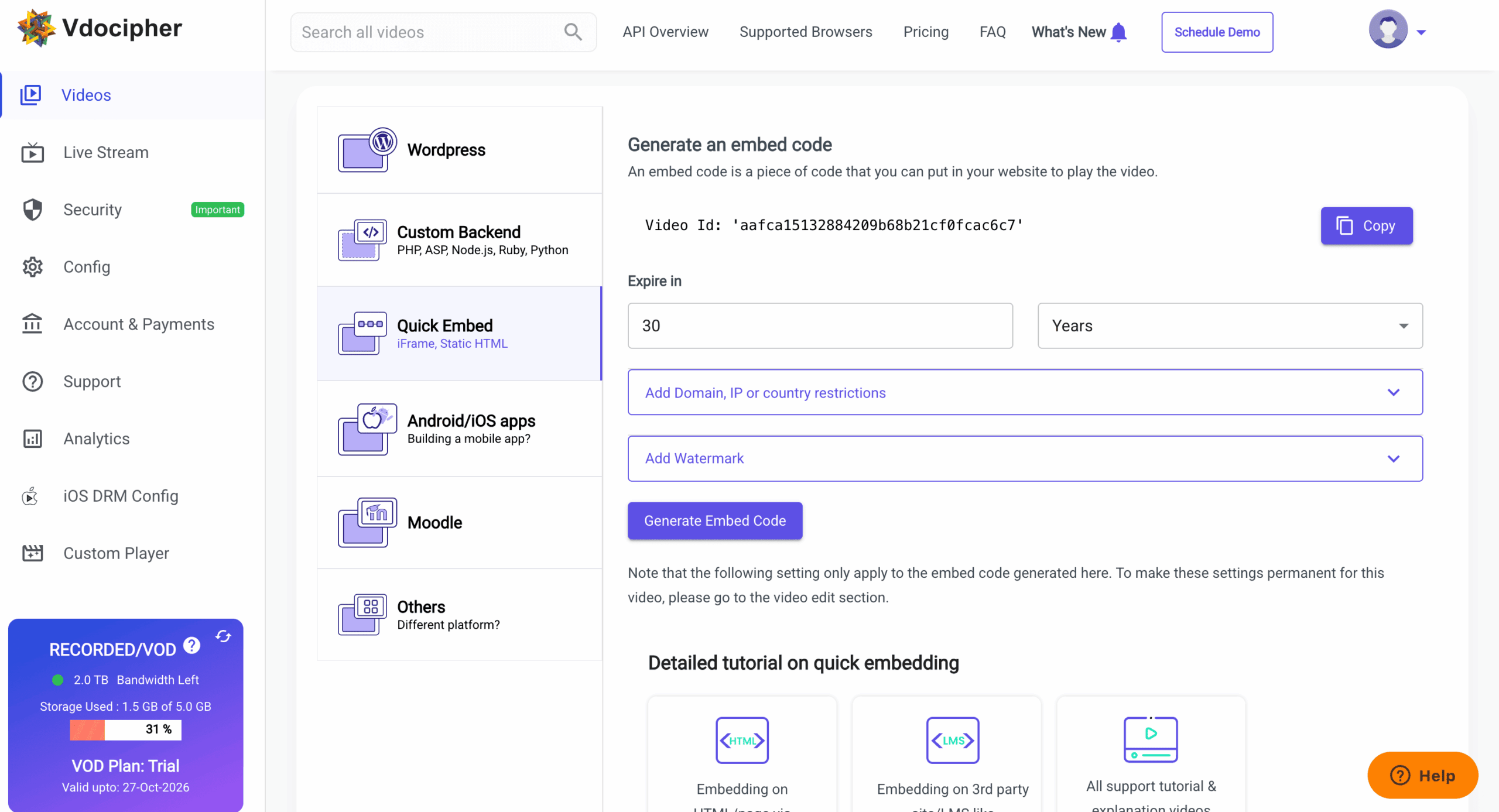
- Visit your VdoCipher dashboard and navigate to your video library
- Select the video you want to embed on your Framer site
- Click Quick Embed in the video options
- Click Generate Embed Code
- Copy the embed code provided
Now in Framer:
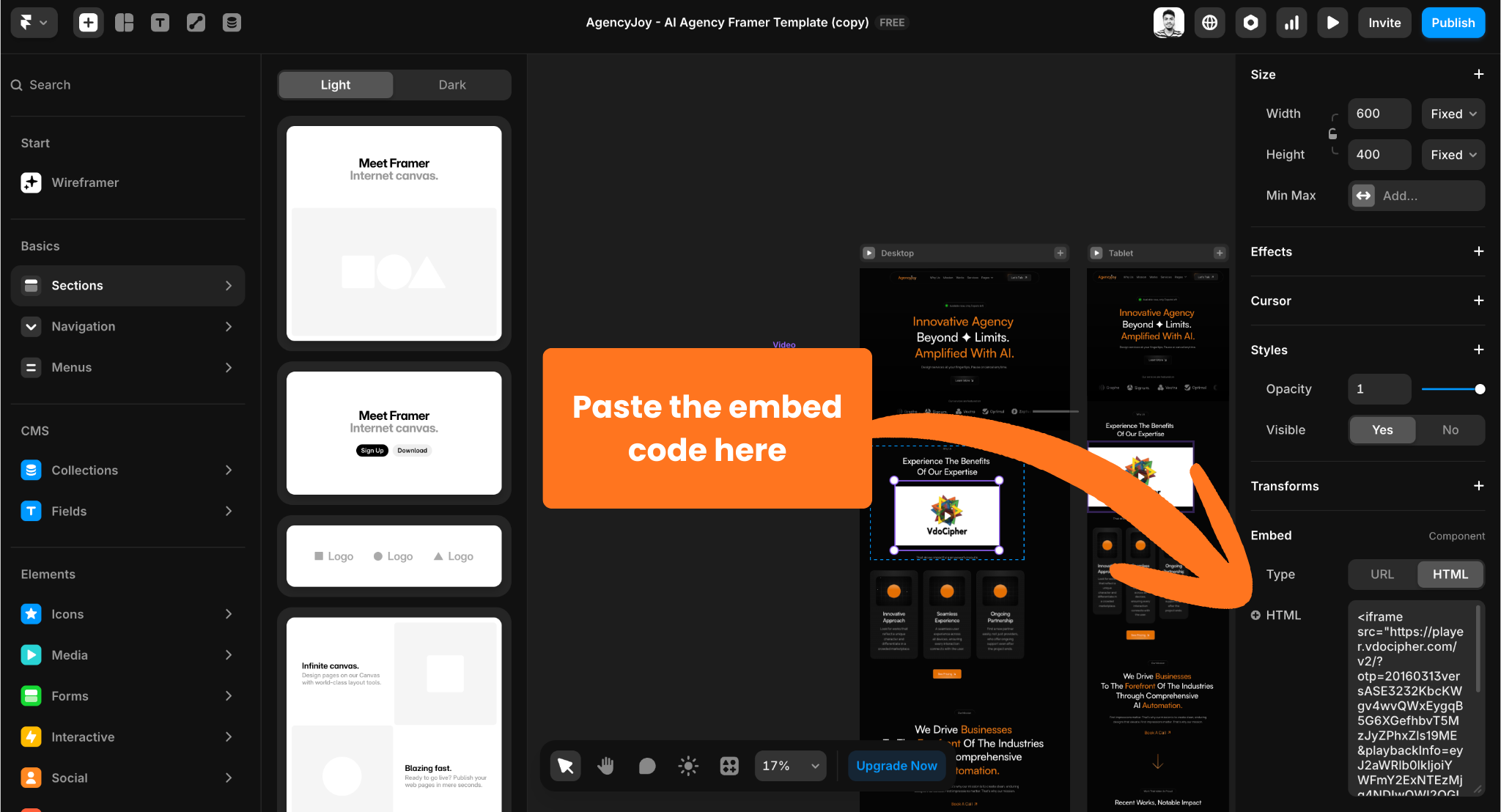
- Open your Framer project and click the + button in the toolbar
- Navigate to Utility > Embed
- Select HTML as your embed type from the dropdown
- Paste your VdoCipher embed code into it
- Adjust the embed component size to match your desired video dimensions
- Preview and publish your site
VdoCipher embed customization options:
When generating your embed code in the VdoCipher dashboard, you can customize:
- Player controls and branding colors
- Autoplay and loop settings
- Quality selector visibility
- Playback speed options
- Subtitle/caption tracks
- Player size and responsive behavior
Best for: Online courses, membership sites, paid webinars, coaching programs, premium tutorials, internal training videos, or any content where you need to prevent unauthorized downloads and sharing.
Explore More ✅
With Vdocipher’s Online Video Player You Can Stream Videos In a Smooth and Secure Manner
Find out how over 3000+ customers in over 40+ countries use Vdocipher’s online video player to ensure seamless and secure video streaming!
Method 2: Embed YouTube Videos (Good for Public Marketing Content)
YouTube works well for public-facing marketing content where reach matters more than security. This method requires zero coding and takes less than 30 seconds.
Step-by-step process:
- Open your Framer project and navigate to the page where you want the video
- Click the + icon
- Navigate to Media > YouTube
- Paste your YouTube video URL
- Framer automatically converts it into a responsive video player
- Resize and position the YouTube component as needed
Pro tips for YouTube embeds:
- Add auto-play for background videos by appending (?autoplay=1&mute=1) to URLs
- Remove suggested videos at the end with (?rel=0) parameter
- Use the aspect ratio lock to maintain 16:9 proportions when resizing
Limitations to consider:
YouTube is perfect for public content, but keep in mind that videos can be easily downloaded using browser extensions, any viewer can share your content freely, and your videos appear alongside YouTube branding and suggested competitor content. For premium or paid content, consider secure hosting alternatives like VdoCipher.
Best for: Marketing videos, company culture content, public testimonials, brand awareness campaigns, or content where maximum reach is the priority.
Method 3: Embed Vimeo Videos (Good Branding, Less Security)
Vimeo offers cleaner embeds than YouTube and better video quality, but lacks robust content protection for valuable videos.
How to add Vimeo videos in Framer:
- Navitage to same Media > Vimeo
- Paste your Vimeo video URL
- Resize and position the video component as design requires
Vimeo advantages:
- Ad-free viewing experience
- Better quality than YouTube
- Privacy settings to hide videos from Vimeo.com
- Cleaner, more professional player appearance
Security considerations:
While Vimeo offers password protection and domain-level privacy, videos can still be downloaded using simple browser tools. The platform doesn’t provide DRM encryption or prevent screen recording. If your video content has monetary value or contains proprietary information, you’ll want enterprise-grade security like VdoCipher offers.
Best for: Portfolio showcases, agency showreels, artistic content, or public videos where you want better quality and aesthetics than YouTube.
VdoCipher helps over 3000+ customers from over 120+ countries to host their videos securely, helping them to boost their video revenues.
Method 4: Upload Video Files Directly to Framer
Framer supports direct video file uploads for backgrounds and ambient content. This works well for short, looping clips but isn’t ideal for longer content or secure hosting.
How to upload video files to Framer:
- Drag your video file (MP4, MOV, or WebM) directly onto your Framer canvas
- Framer automatically creates a video element and optimizes the file
- Click the video to access playback controls in the properties panel
Video file settings you can control:
- Autoplay: Start playing automatically when page loads
- Loop: Continuously repeat the video
- Muted: Essential for autoplay to work on most browsers
- Controls: Show or hide the default video player controls
- Poster image: Set a custom thumbnail before playback
Important limitations:
- Keep video files under 10MB for optimal loading speed
- No security features – anyone can download your video file
- No analytics on viewing behavior
- Videos increase your Framer site’s overall bandwidth usage
- Not suitable for courses, tutorials, or any content you need to protect
Best for: Background videos, hero section animations, short ambient loops, or decorative video elements where security isn’t a concern.
Video Tutorial: Watch How to Embed Video in Framer
This video tutorial walks through each method in real-time, showing exactly how to embed video in Framer using VdoCipher and secure your videos from piracy.
Choosing the Right Video Platform for Your Framer Site
Not all video hosting platforms serve the same purpose. Here’s how to decide which method to use based on your specific needs.
Choose VdoCipher when you need:
- Content protection for paid courses or membership sites
- Prevention of video downloads and screen recording
- Detailed analytics on viewer behavior and engagement
- Dynamic watermarking to identify content leakers
- Domain restriction to prevent embed code theft
- Professional presentation without platform branding
- Access control based on user authentication
VdoCipher is purpose-built for businesses that monetize video content or need to protect intellectual property. The DRM encryption prevents the casual piracy that plagues YouTube and Vimeo-hosted premium content.
Choose YouTube when you need:
- Maximum reach and discoverability
- SEO benefits from YouTube search
- Free hosting with unlimited bandwidth
- Social sharing and community features
- No concern about video downloads
Choose Vimeo when you need:
- Better video quality than YouTube
- Clean, ad-free viewing experience
- Basic privacy controls
- Portfolio or showcase presentation
Choose direct uploads when you need:
- Short background videos or ambient content
- Complete design control
- No external dependencies
- Files under 5MB that won’t impact load time
Security Comparison: Protecting Your Video Content
If you’re embedding educational content, webinars, or any videos that represent business value, understanding security differences is crucial.
What happens with unsecured video hosting:
When you upload videos to YouTube, Vimeo, or directly to Framer, anyone can download them using free browser extensions like Video DownloadHelper or simple command-line tools. Your paid course content can be redistributed on torrent sites within hours of publishing. Screen recording apps like OBS Studio can capture and share your content regardless of platform restrictions.
How VdoCipher protects your content:
VdoCipher uses DRM (Digital Rights Management) encryption, the same technology streaming giants like Netflix and Amazon Prime use. Videos are encrypted at the source and only decrypted during playback in authorized environments. This prevents:
- Downloads through browser extensions or developer tools
- Screen recording through software and hardware capture devices
- Unauthorized sharing of embed codes across domains
- Video theft through network packet sniffing
Additionally, VdoCipher’s dynamic watermarking overlays each viewer’s email or user ID on the video, creating forensic evidence that identifies the source of any leaked content.
The business case for secure video hosting:
If someone pays for your course or membership, they should receive exclusive access – not the ability to download and redistribute your content freely. The small investment in secure hosting typically pays for itself by preventing a single unauthorized redistribution. For online educators, course creators, and businesses with proprietary training content, DRM protection isn’t optional – it’s essential.
Performance Tips for Video in Framer
Adding video shouldn’t tank your website performance. Follow these optimization strategies:
For embedded videos (VdoCipher, YouTube, Vimeo):
- These platforms handle compression and adaptive streaming automatically
- Videos load only when needed (lazy loading)
- Global CDNs ensure fast delivery worldwide
- Minimal impact on your Framer site’s loading speed
For direct uploads to Framer:
- Compress videos using HandBrake or Adobe Media Encoder before uploading
- Target 1080p maximum resolution (720p works fine for most use cases)
- Keep file sizes under 5MB for inline videos, under 3MB for backgrounds
- Use MP4 format with H.264 codec for best browser compatibility
General best practices:
- Hide videos on mobile breakpoints if they’re not essential
- Use poster images that load instantly while video buffers
- Place videos below the fold when possible to prioritize initial page load
- Test your site’s loading speed with tools like Google PageSpeed Insights
Frequently Asked Questions About Embedding Video in Framer
How do I embed a video in Framer?
To embed video in Framer, press Cmd/Ctrl + K to open the insert menu, select “Embed” for YouTube/Vimeo videos, or go to Utility > Embed > HTML for video platforms like VdoCipher. Paste your video URL or embed code, resize the component, and you’re done. The entire process takes less than a minute.
Can I upload video files directly to Framer?
Yes, you can drag and drop MP4, MOV, or WebM files directly onto your Framer canvas. Framer automatically creates a video element with playback controls. However, keep files under 10MB for optimal performance and note that direct uploads don’t provide security features or analytics like dedicated video platforms offer.
What’s the best video hosting platform for Framer websites?
The best platform depends on your needs. VdoCipher is ideal for paid courses, memberships, and premium content that needs DRM protection and download prevention. YouTube works well for free content, public marketing videos where reach matters most. For background videos under 5MB, direct uploads to Framer work fine.
How do I make videos autoplay in Framer?
Set your video to muted and enable autoplay in the video properties panel. For YouTube embeds, add ?autoplay=1&mute=1 to your URL. For VdoCipher and other platforms, enable autoplay when generating your embed code. Note that browsers block autoplay for unmuted videos to protect user experience.
How do I track video analytics in Framer?
YouTube and Vimeo provide basic analytics through their platforms. For detailed viewer analytics including watch time, drop-off points, geographic data, and user-specific tracking, use a video platform like VdoCipher that’s built for business video analytics. These insights help you optimize content and understand user behavior.
Supercharge Your Business with Videos
At VdoCipher we maintain the strongest content protection for videos. We also deliver the best viewer experience with brand friendly customisations. We'd love to hear from you, and help boost your video streaming business.


Leading Growth at VdoCipher. I love building connections that help businesses grow and protect their revenue. Outside of work, I’m always exploring new technology and startups.
Leave a Reply