
We’re excited to introduce a powerful new way to engage your audience—right inside your videos. You can now interact with them using in-video Polls, Quizzes, Q&A, and customizable chat features. Turn passive watching into active participation and make every video a two-way experience to enhance engagement, measure learning outcomes, and get instant feedback.
This blog presents a tutorial on the use and customisation of the following interactions for Live Streaming. First section has a video tutorial, followed by text tutorial.
1. Polls & Quizzes
2. Q/A with Moderator control
3. Chat configuration: Pause, Slow Mode, Delay
Polls & Quizzes
Step 1 – New polls and quizzes specific to the stream can be created from 2 sections
– The “Engagement tools” section under a specific live stream OR
– The “Polls/Quiz” section on right side of dashboard for polls/quizzes which can be saved and used in multiple streams.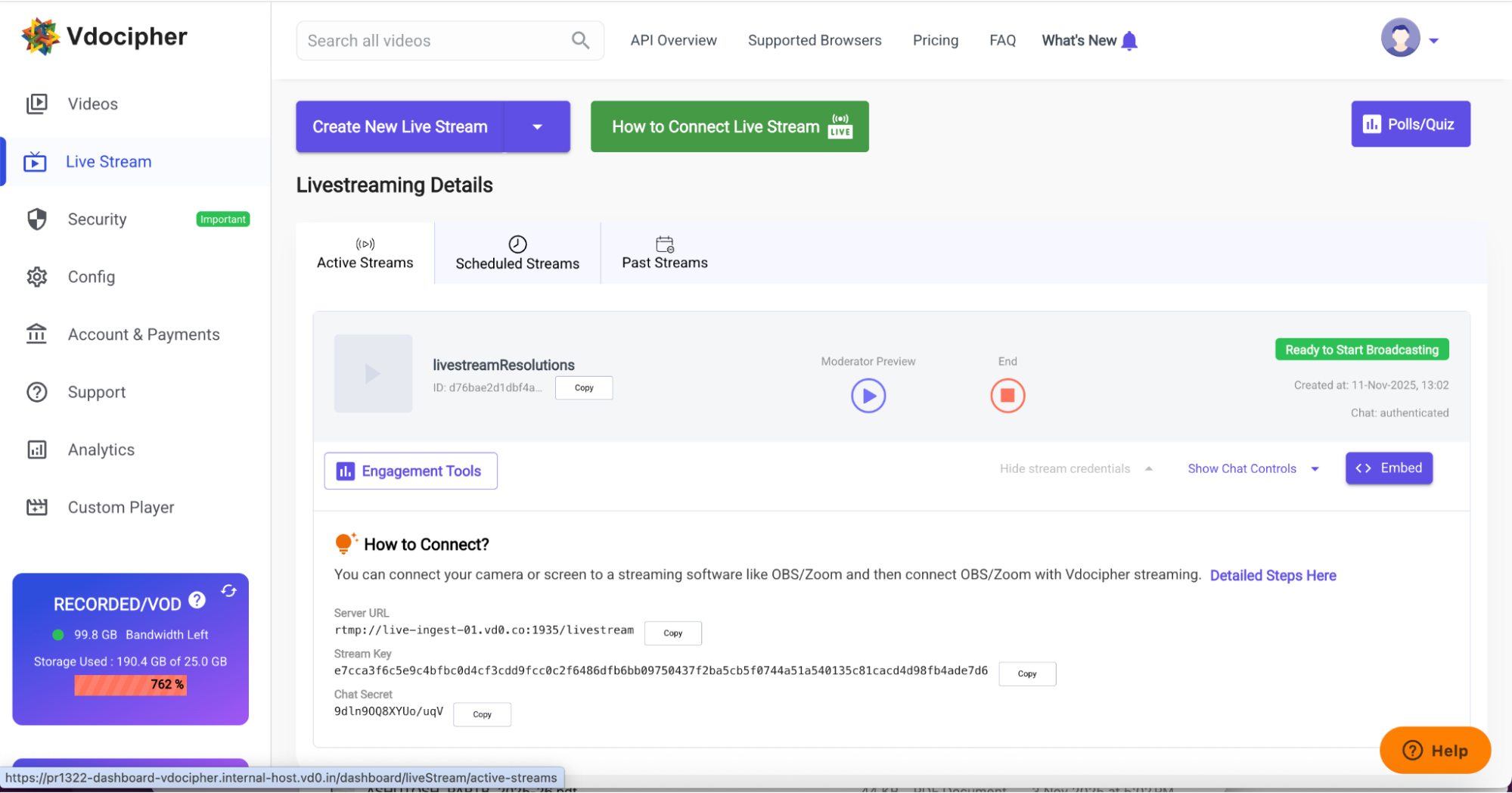
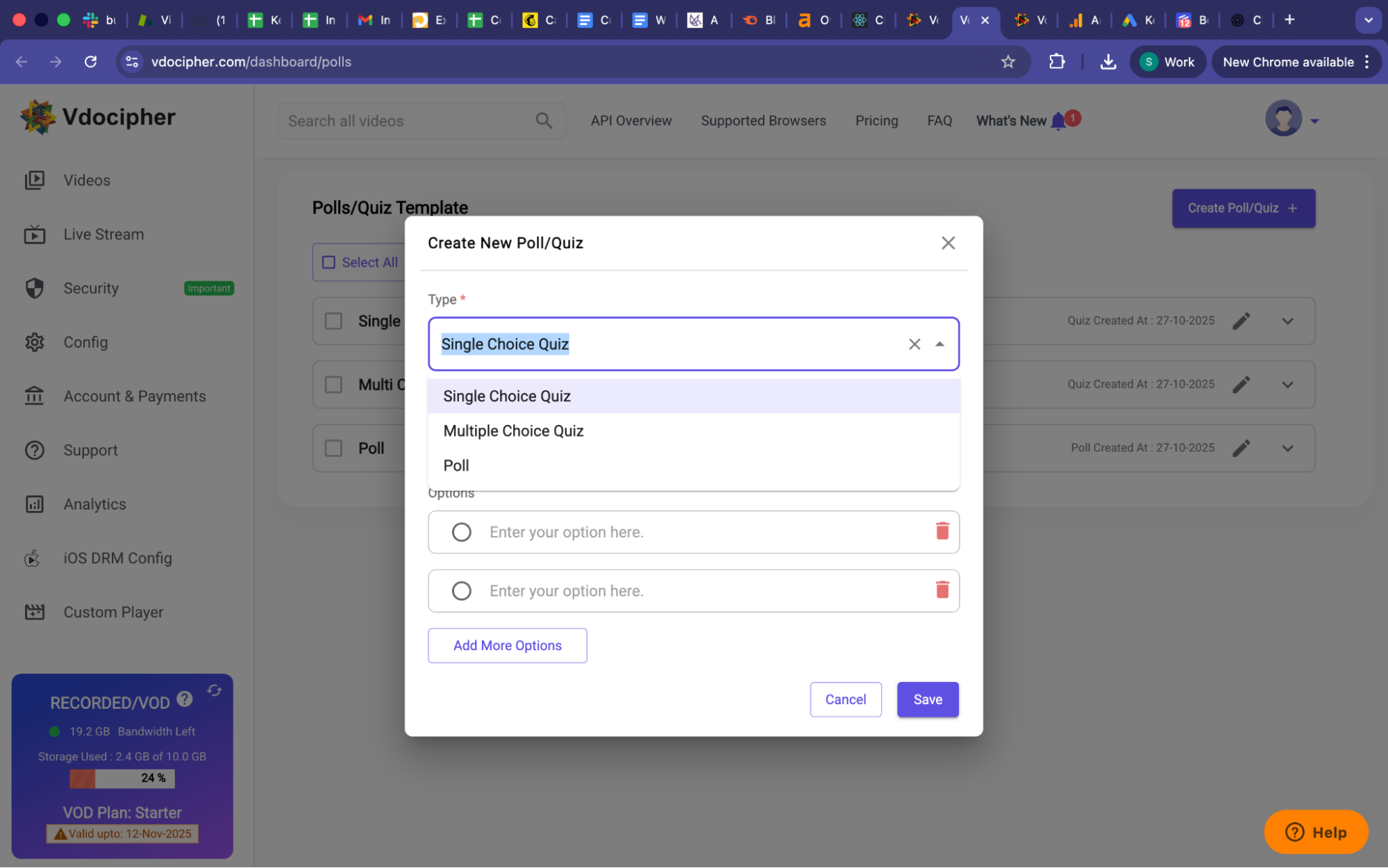
Step 2: Create three types of interactions:
- Single Choice Quiz – Let users select one correct answer.
- Multiple Choice Quiz – Allow multiple correct selections.
- Poll – Gather opinions or audience responses easily.
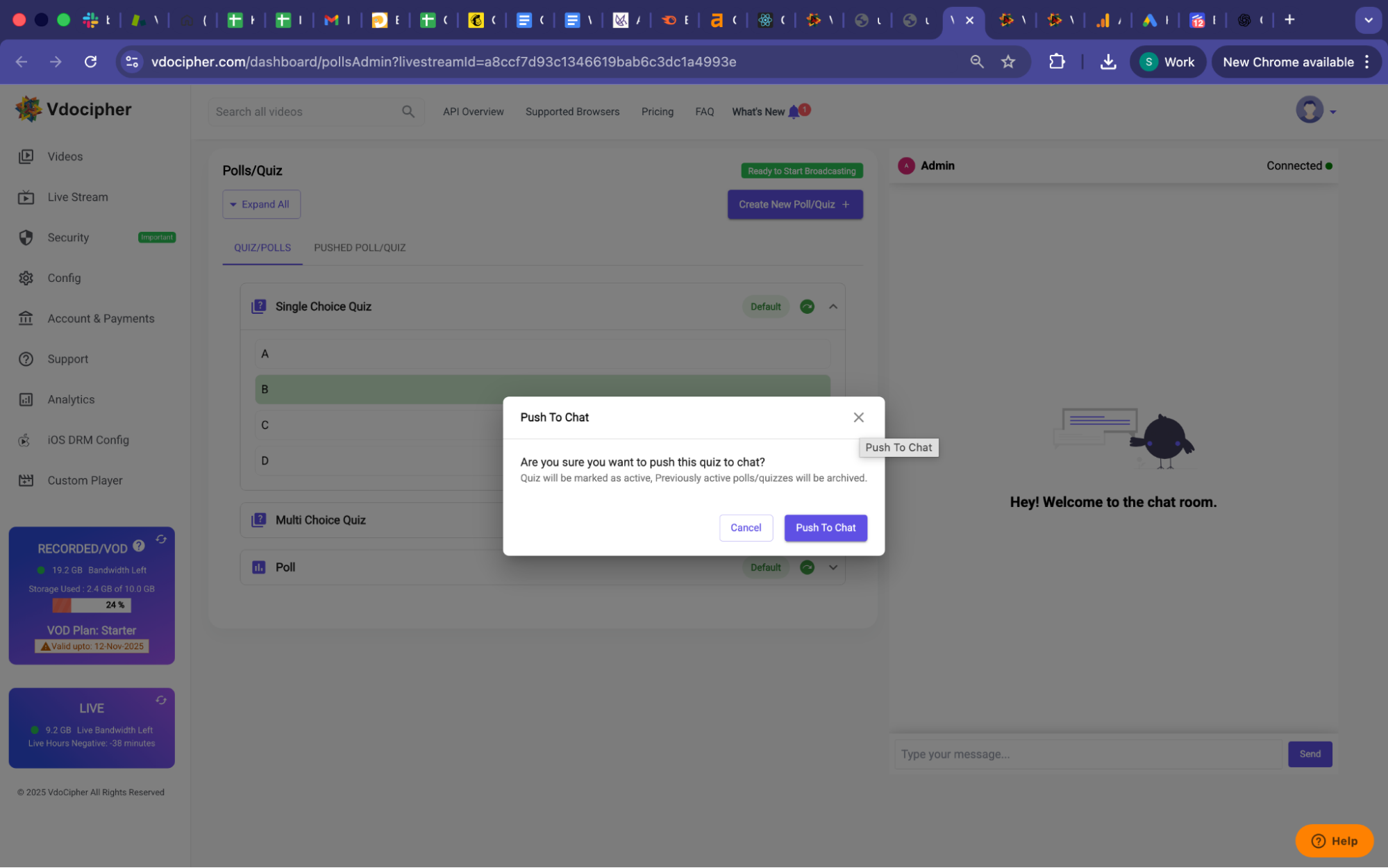
Step 3: Simply click on the green round arrow icon (Push to Chat) to send a selected poll or quiz directly to the live chat. Viewers will see it in real time and can respond instantly, making your sessions truly interactive and engaging.
Each time you push a new quiz or poll, it becomes an active interaction, while previously shared polls or quizzes are archived automatically. This ensures a smooth experience for both the host and the audience, without clutter or confusion.
Step 4
In the “Pushed Poll/Quiz” tab, you’ll see vote counts and percentages for each option, whether it’s a Poll, Single Choice Quiz, or Multiple Choice Quiz. Archived quizzes and polls remain visible for quick reference, so you can easily track engagement patterns and learner performance after each session
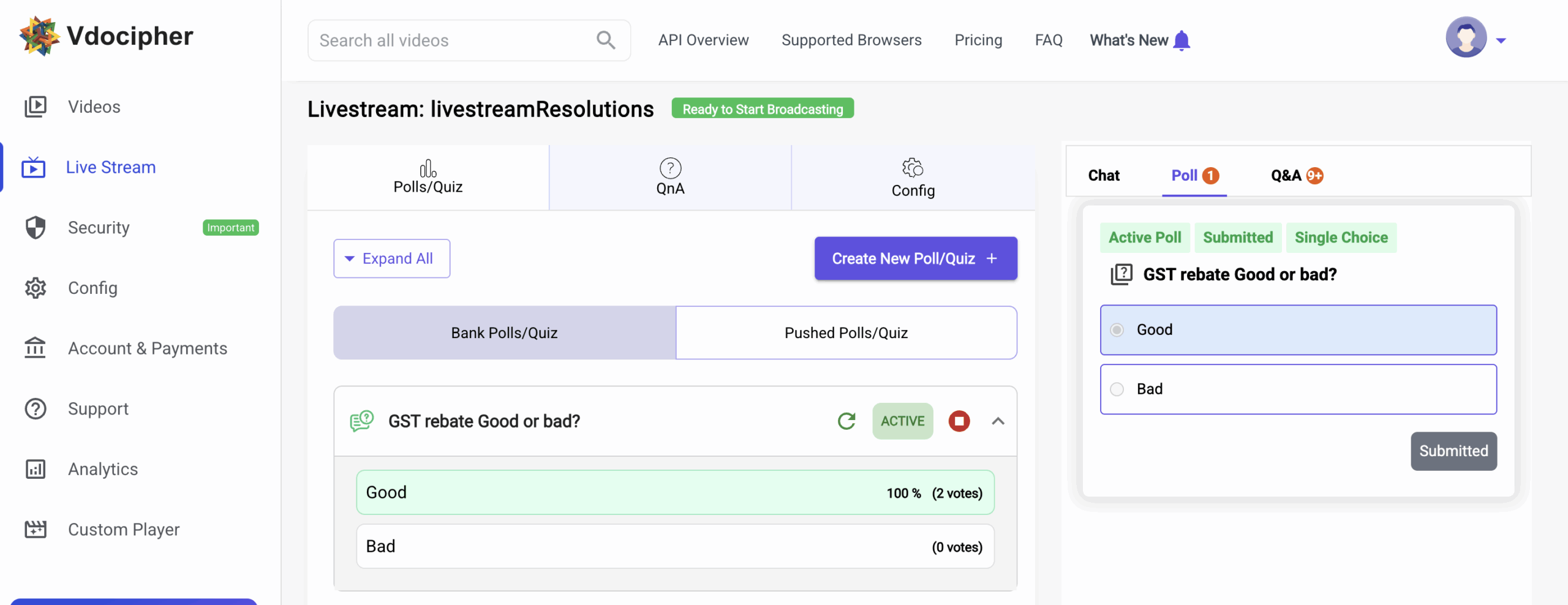
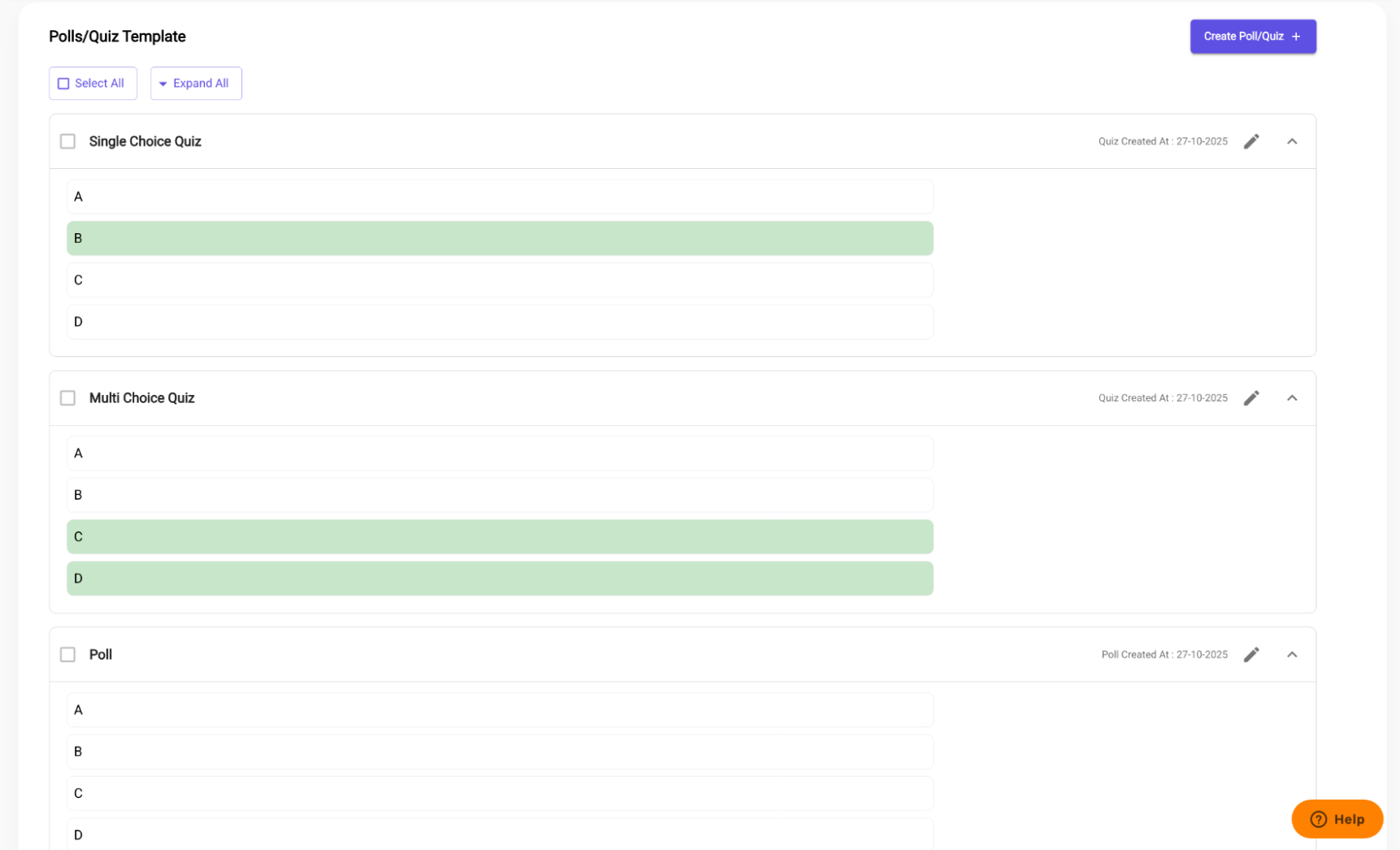
Each item displays its question type – Single Choice, Multiple Choice, or Poll along with all answer options. Selected choices are highlighted clearly, giving you an instant visual view of correct answers or audience selections.
This makes it super easy to manage, edit, or reuse your interactive templates anytime.
You can review all created polls and quizzes, track engagement, or quickly duplicate templates for future videos all from a single dashboard view.
Q&A for Live Streaming → Real-Time Viewer Interaction!
We have launched Q&A for live streams, allowing verified viewers to ask questions during a broadcast. Hosts and moderators can review, approve, respond, and archive questions seamlessly without leaving the dashboard.
1. Ask Questions, Authentically
With the Q&A feature, only authenticated viewers can submit questions. This ensures a secure, spam-free environment and allows creators and educators to interact with real audience queries that matter.
During any live stream, viewers now see a dedicated “Ask your question” input inside chat, helping them raise doubts or seek clarity instantly as the session unfolds.
2. Manage Questions with Engagement Tools
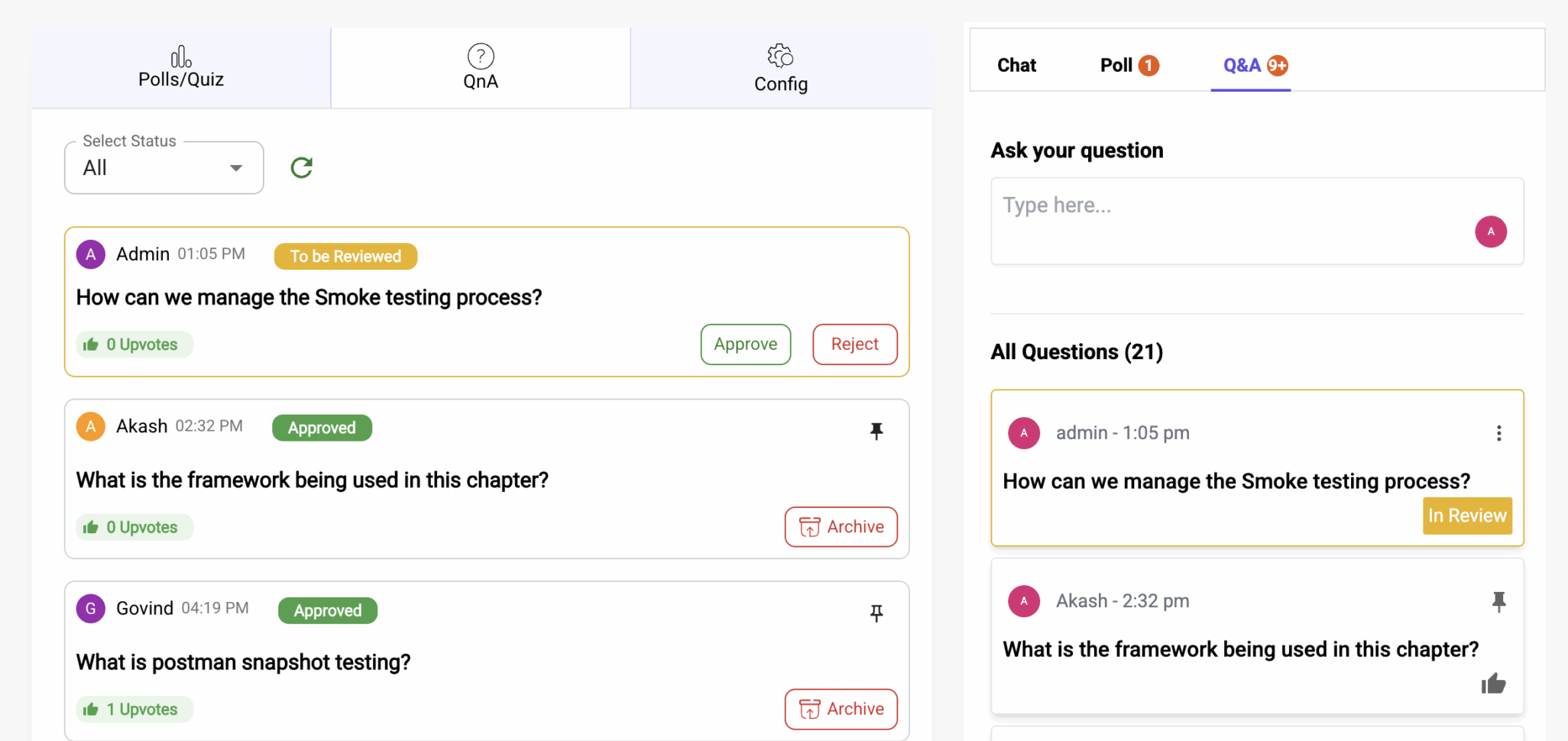
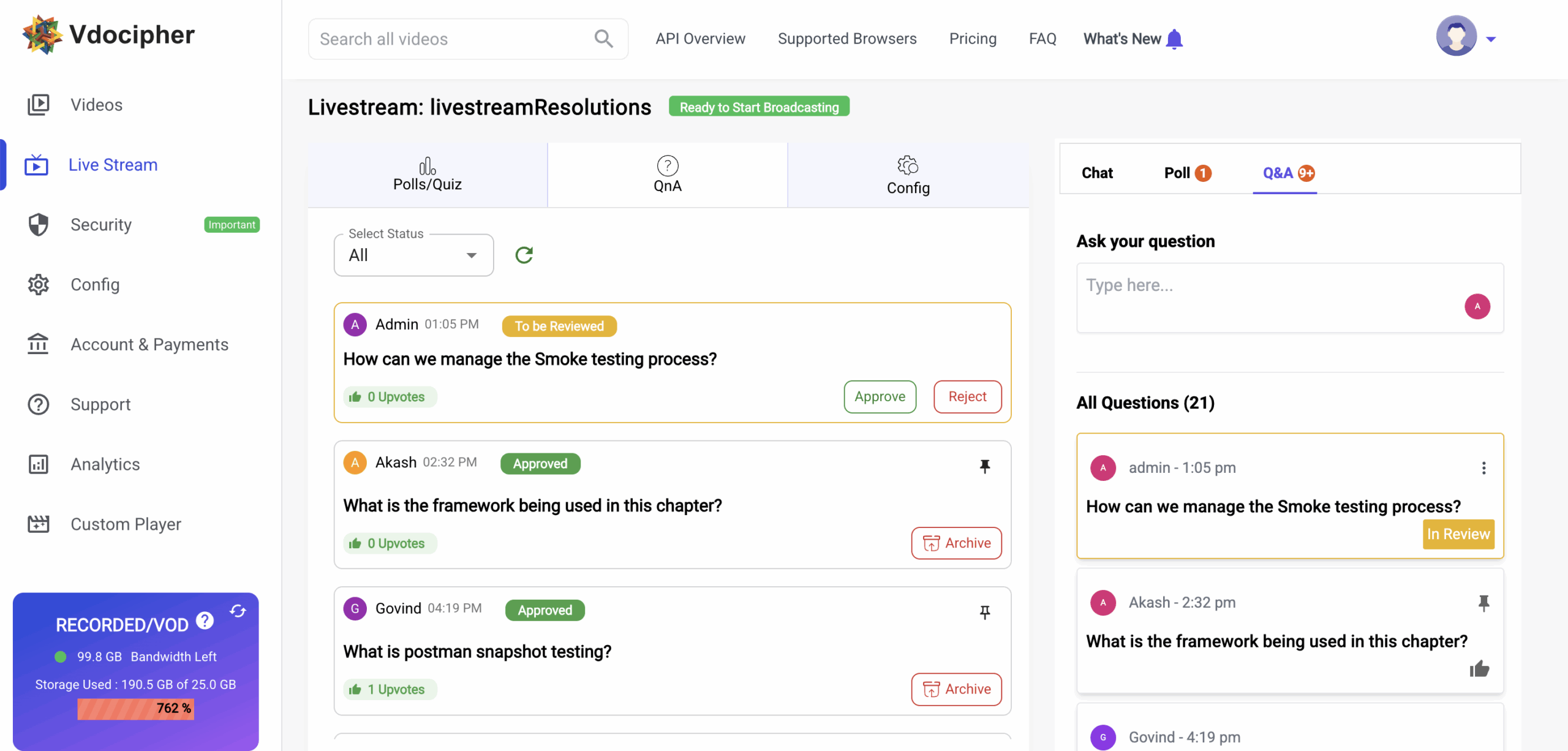
Once your authenticated live stream is created from the dashboard, click the “Engagement Tools” button. This redirects you to the QnA moderation panel. Here, hosts can:
- View all viewer questions along with timestamps
- Review pending queries
- Respond by chat or address them verbally during the live session
- Archive older questions for reference
3. Moderation: Approve or Reject
Moderators now have full control to manage question visibility. Every submitted question enters a review stage. After evaluating relevance, tone, and intent, moderators can Approve or Reject the question. Approved questions become part of the live chat or QnA panel for broader audience visibility. Rejected questions remain private and do not disrupt the engagement experience.
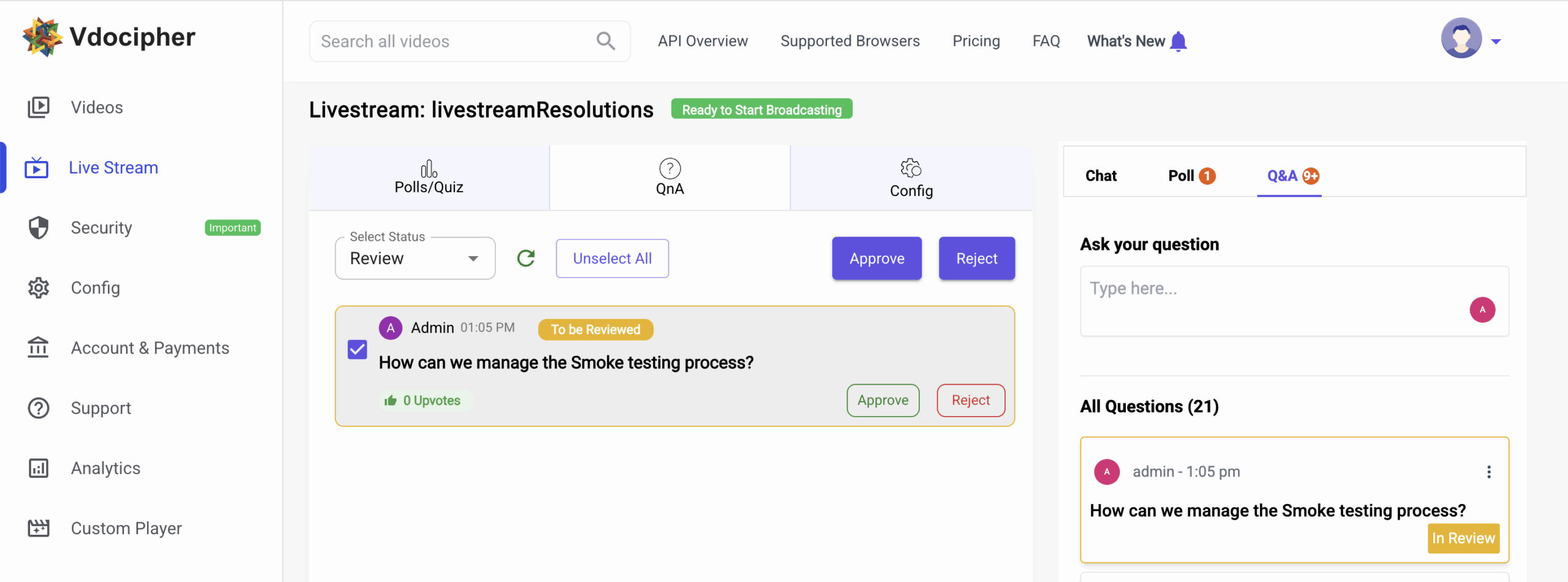
This feature strengthens broadcast control and maintains content quality for large audiences.
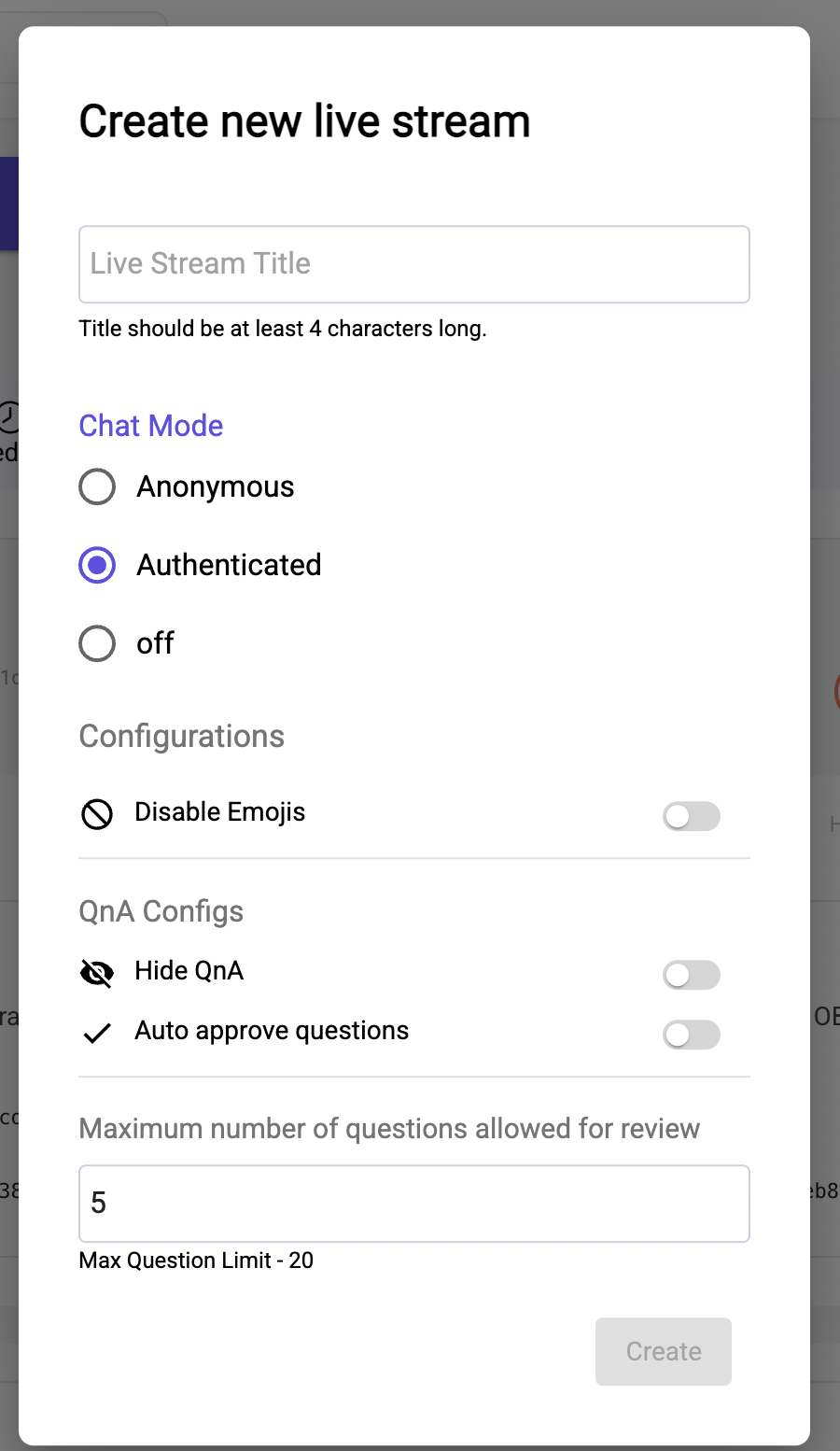
4. Configuration – In the “config” section , you can configure if you want to disable emojis or limit question count for review or hide Q/A totally.
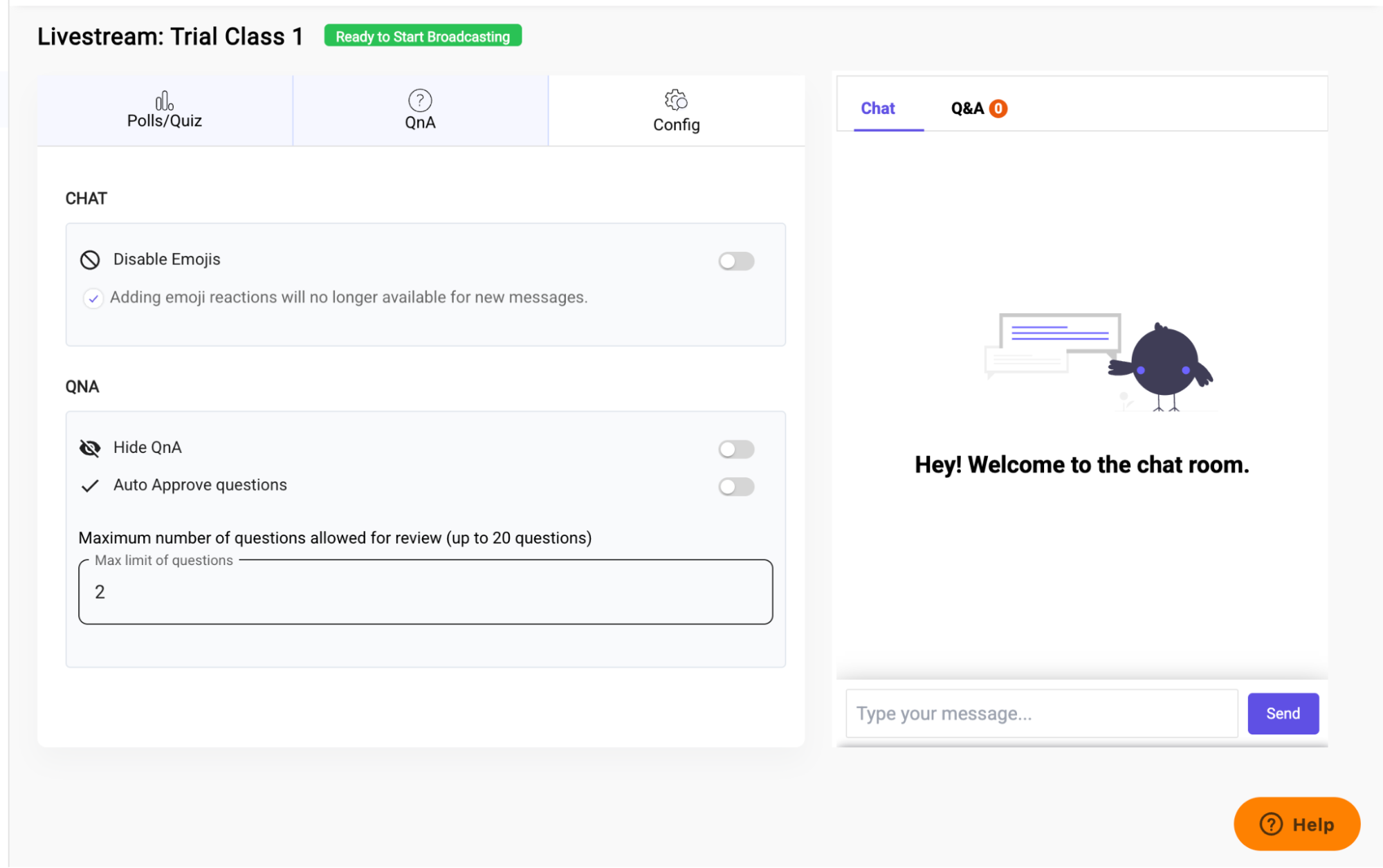
Same option is visible if you create authenticated stream in dashboard.
The Q&A update completes your interactive streaming toolkit by enabling:
- Two-way communication during live video
- Real-time assessment + feedback
- Moderation discipline for larger audiences
- Secure engagement for authenticated creators, course hosts, and live event trainers
Live Stream Chat Controls: Pause, Slow Mode & Delay
Building on interactive video experiences, we’ve also enhanced Live Stream Chat Controls giving creators better moderation and smoother audience management during live sessions.
1. Please click on “Show chat controls” option below any live stream in dashboard on right side.
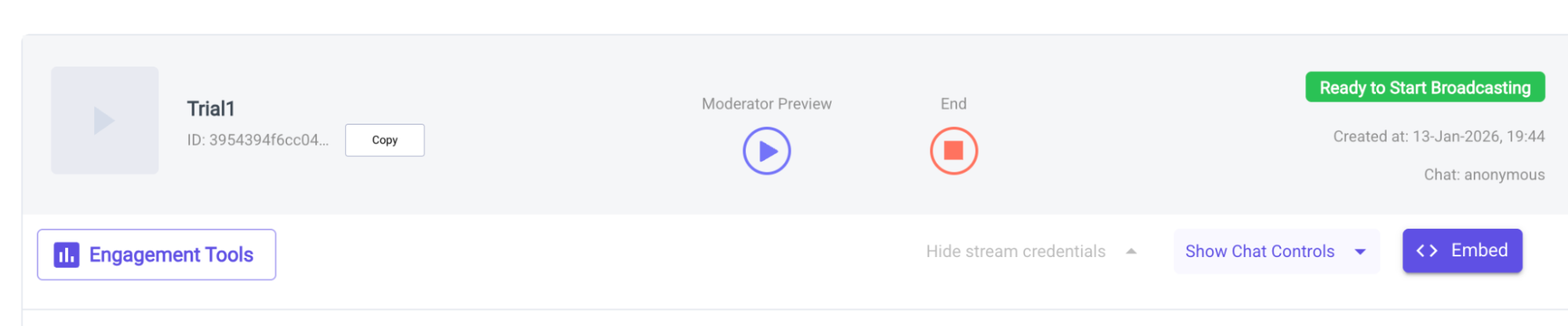
2. With the new Chat Control features, you can:
Pause Chat – Temporarily stop messages to maintain focus during key announcements or explanations.
Enable Slow Mode with Set Delay Duration– Restrict users from sending multiple consecutive messages, ideal for managing large audiences. Introduce a brief message delay to avoid chat flooding and ensure meaningful interaction.
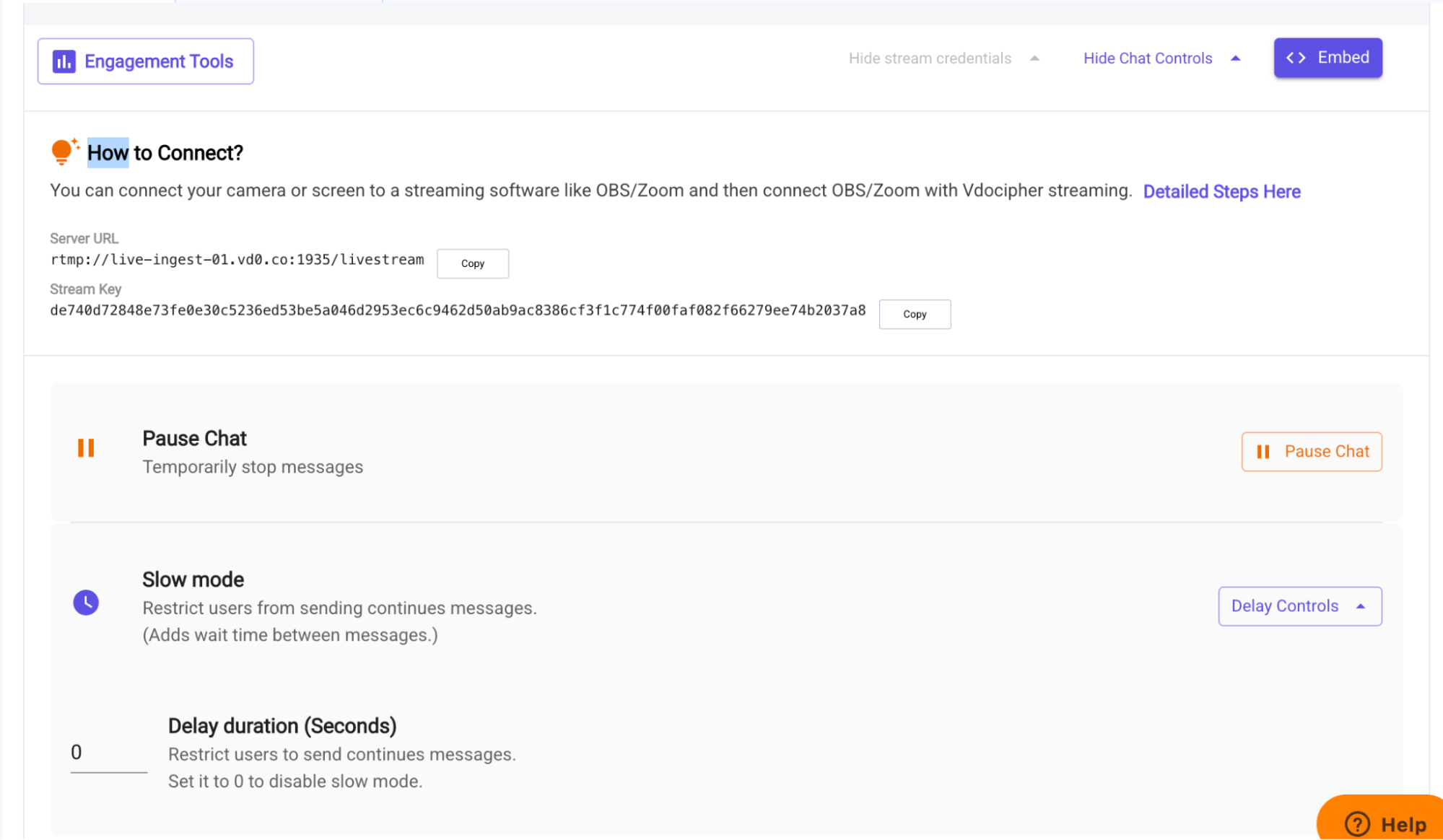
These tools give hosts complete flexibility to manage audience engagement while running polls, quizzes, or live classes – ensuring distraction-free, high-quality sessions.
Try these awesome interactions today and send us any queries/doubts to support@vdocipher.com
Interactive Live Streaming for Your Audience
Polls, Quizzes, Chat customisation for happy interactions with your live viewers !

Leave a Reply